The short answer
What this setting controls
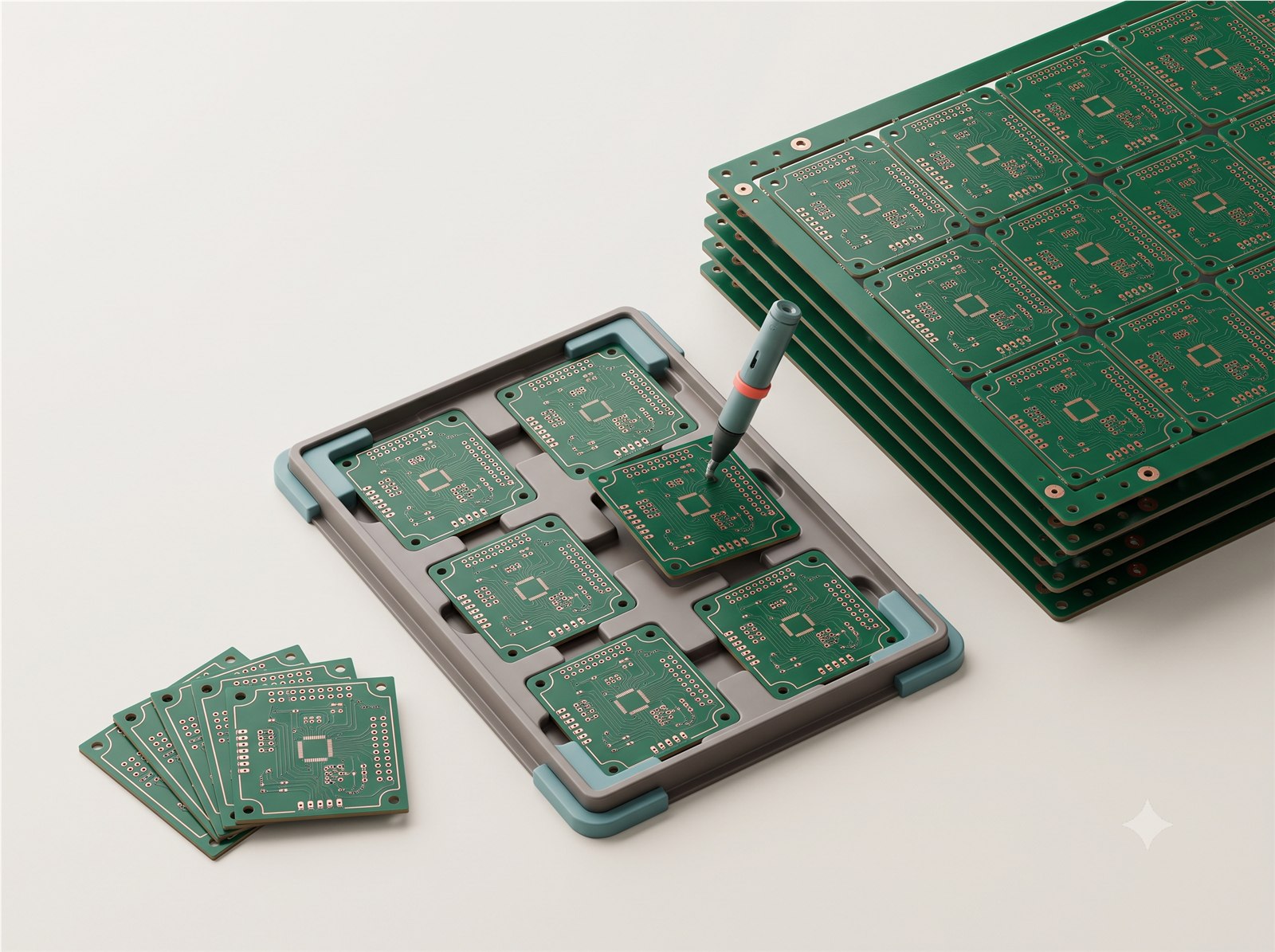
A small quantity is useful for prototypes and bring-up. Larger quantities usually reduce the unit price because setup and material costs are spread across more pieces, but the exact curve depends on the build.
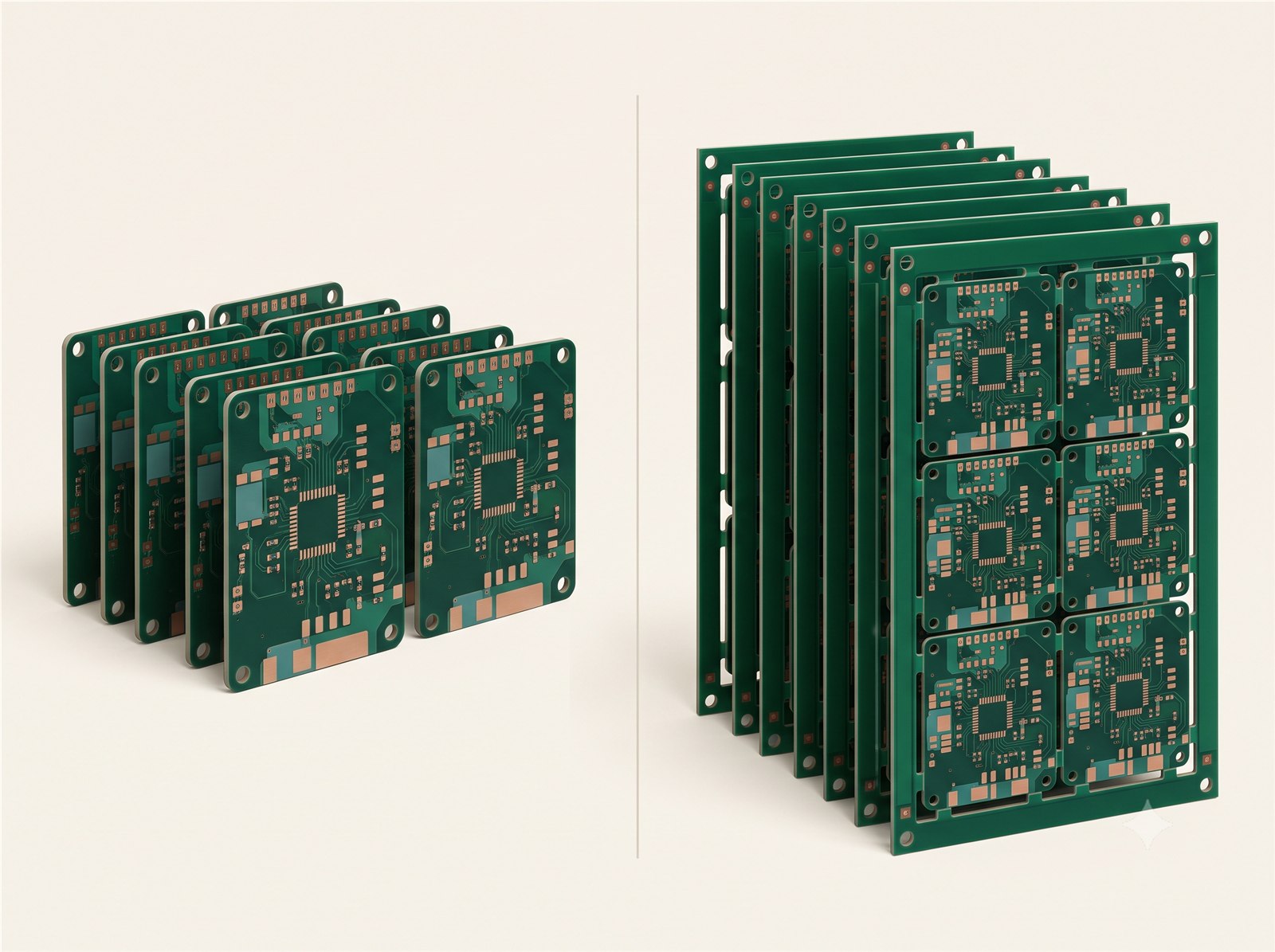
Separate board count, panel count and assembly quantity in your planning. Test-method availability, panel economics, scrap allowance and demand confidence should all be considered together.
Options in the order form
How the available choices differ
| Choice | Use it for | Engineering note |
|---|---|---|
| Prototype quantity | Bring-up, destructive test and early learning | Include enough spare boards for rework and measurement. |
| Pilot quantity | Process validation and trial production | Plan assembly yield, component attrition and test coverage before committing. |
| Production quantity | Stable released design | Use the custom quantity path only after demand, panel and acceptance plans are controlled. |
Compatibility
What can change with this selection
- A panel order and a single-board order do not mean the same thing even when the numeric quantity matches.
- Changing quantity may change the available test options and quoted price.
- If the page disables a choice, treat it as a compatibility result and adjust the controlling design decision rather than forcing the value.
Practical recommendation
How to make the decision
- Use the smallest quantity that gives you enough units for bring-up, test, spares and expected failures.
- Use More only for a deliberate custom quantity that passes the page validation.
- For assembly, confirm whether the assembly quantity should match the fabrication quantity.
Before release
Check these points before adding the quote to cart
- Confirm the selected value matches the released Gerber, drawing, stack-up, BOM or assembly plan.
- Review any fields that changed automatically after this selection.
- Check the board preview and latest estimate before adding the quote to cart.
- Use the smallest quantity that gives you enough units for bring-up, test, spares and expected failures.
- Use More only for a deliberate custom quantity that passes the page validation.
- For assembly, confirm whether the assembly quantity should match the fabrication quantity.
Frequently asked questions
Answers for ordering and design review
Why did an option appear after I increased quantity?
Some test paths are offered only after the quantity reaches the minimum production threshold for that process.
Can I enter any number?
Use the listed ladder or the More path. Custom quantities must be above the listed maximum and satisfy the validation shown by the page.
When should I change PCB quantity?
Change it when the released electrical, mechanical, thermal, assembly or quality plan gives a measurable reason. Otherwise keep the compatible default and review the resulting board preview and estimate.
Why is an option disabled?
The current material, geometry, layer count, quantity or another selected process makes that combination unavailable. Change the controlling selection or revise the design package rather than trying to bypass the disabled state.
Can I rely on the online choice as final manufacturing approval?
No. The interface screens known combinations and requests pricing, while final manufacturability remains subject to the released files and technical review.
What should I record outside the order form?
Put controlled requirements in the fabrication drawing, assembly drawing, stack-up, BOM or acceptance plan. Use Special instructions only for a concise pointer to that controlled requirement.
Will changing this update other selections?
It can. The order form re-evaluates compatibility and may replace a now-invalid dependent choice before updating the quote. Review every highlighted or automatically changed field.
What if the design requires an option that is not offered?
Do not approximate it with a different label. Recheck the controlling material and geometry, document the actual requirement, and request technical review before placing the order.
Further reading
Standards and technical references
Use the latest applicable revision and your organisation’s controlled requirements when a standard forms part of product acceptance.